LinkedIn scheduler
LinkedIn Post Scheduler
Write your LinkedIn post once, pick a time, and let it publish itself to your profile or company page — then send the same update to X, Threads, Facebook and the rest of your networks.
7 days free, then from $19.90 a month. Cancel anytime.
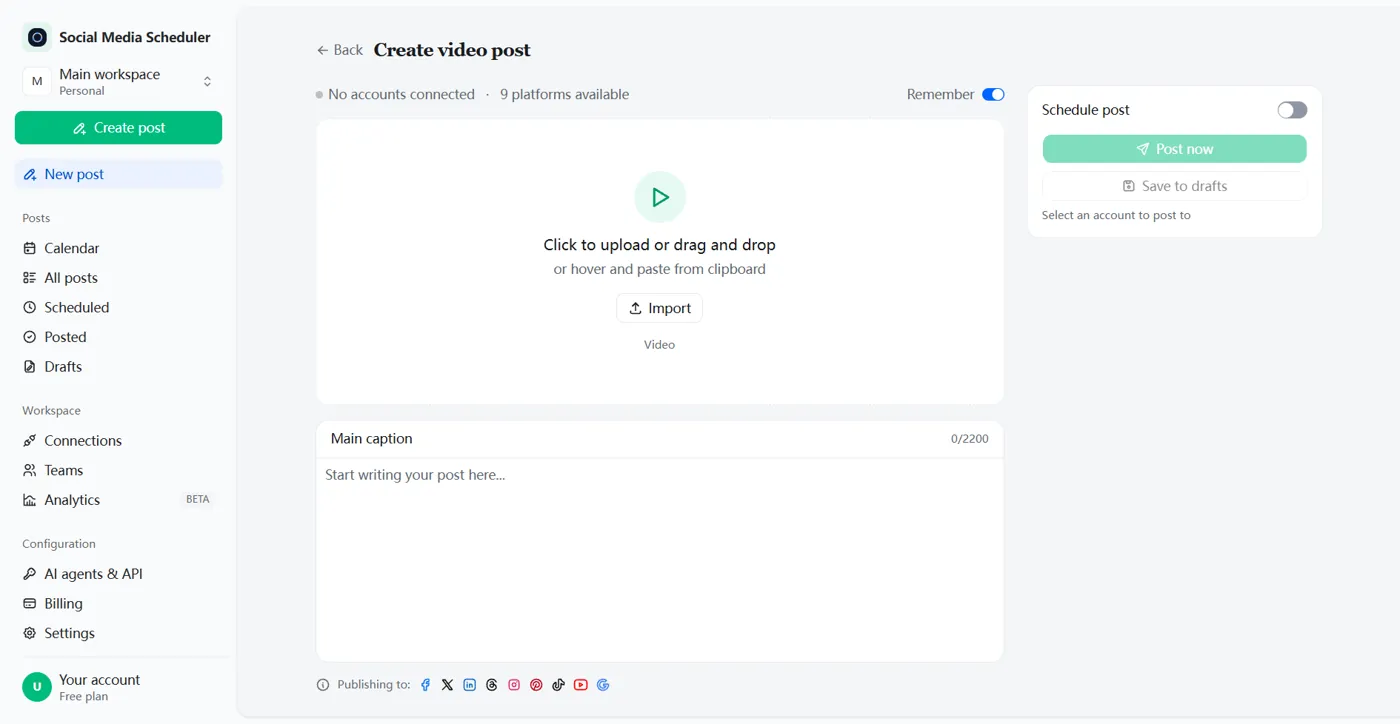
Schedule LinkedIn posts in advance, without opening LinkedIn
A LinkedIn post scheduler lets you write LinkedIn posts ahead of time and publish them automatically at the date and time you choose. Social Media Scheduler connects to your LinkedIn profile and company pages, queues text, image, video and PDF carousel posts, and publishes each one on time while you work.
LinkedIn rewards people who show up every week, and that is the hard part. Batch a week of LinkedIn posts on Monday morning, check how each one reads, and let the queue keep you visible on the days you are busy with clients.
How to schedule a LinkedIn post
Scheduling a LinkedIn post takes three steps: connect your LinkedIn account, write the post with any image, video or PDF, then pick a date and time. The post publishes itself to LinkedIn when the time comes, and its status shows up in your Scheduled list.
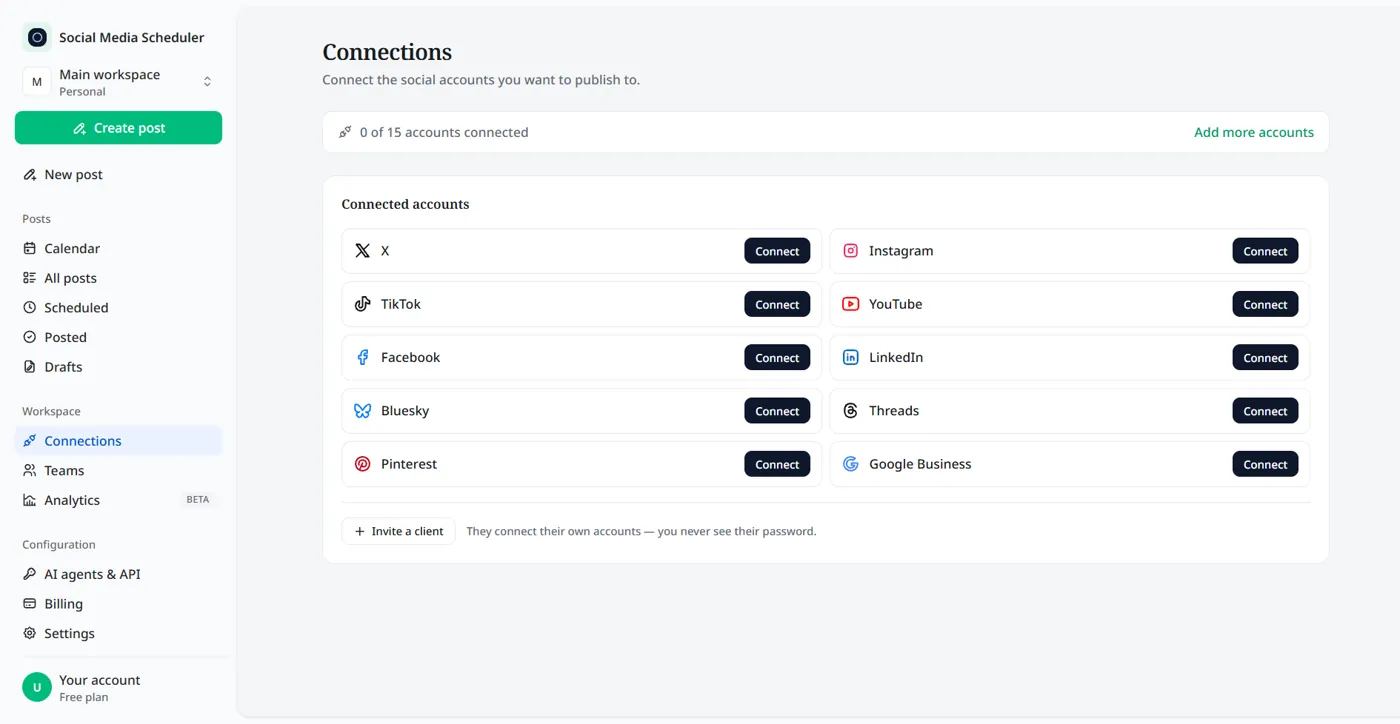
1. Connect your LinkedIn account
Click Connect next to LinkedIn and approve access on LinkedIn’s own sign-in screen. If you manage a company page, it becomes available to post to as well. No password ever passes through us.
2. Write the LinkedIn post
Pick a text, image or video post. Paste your caption, attach images, a video or a PDF, and add the first comment you want under the post — usually the link you kept out of the caption.
3. Pick a time, or post now
Turn on Schedule post, choose the date and time in your own timezone, and save. The LinkedIn post waits in your Scheduled list and goes out on time; Post now publishes it straight away.
What you can schedule to LinkedIn
Every LinkedIn post format people actually use can be scheduled: text, images, video and PDF carousels, to your profile or to a company page, with an optional first comment.
Text posts
Plain LinkedIn posts of up to 3,000 characters, with your line breaks and emoji. Text posts are the easiest to batch: write five on Monday, spread them across the week.
Image posts
One image or several, for screenshots, quotes and event photos. Upload once and the same images can go to Facebook and Threads in the same scheduled post.
Video posts
Upload a video and schedule it to LinkedIn alongside YouTube, TikTok and Instagram Reels, so one recording covers every channel you post to.
PDF carousels
Upload a PDF and it publishes as a LinkedIn document — the swipeable carousel that gets people to stop scrolling. Design the slides in Canva or Google Slides, export to PDF, schedule it like any other LinkedIn post.
Personal profile and company page
Schedule to your own LinkedIn profile and to any company page you are an admin of. Run your personal brand and your company’s page from the same calendar instead of switching accounts on LinkedIn.
Scheduled first comment
Write the first comment along with the post and it is added right after the post goes live. Put your link or sign-up page there and keep the post itself clean.
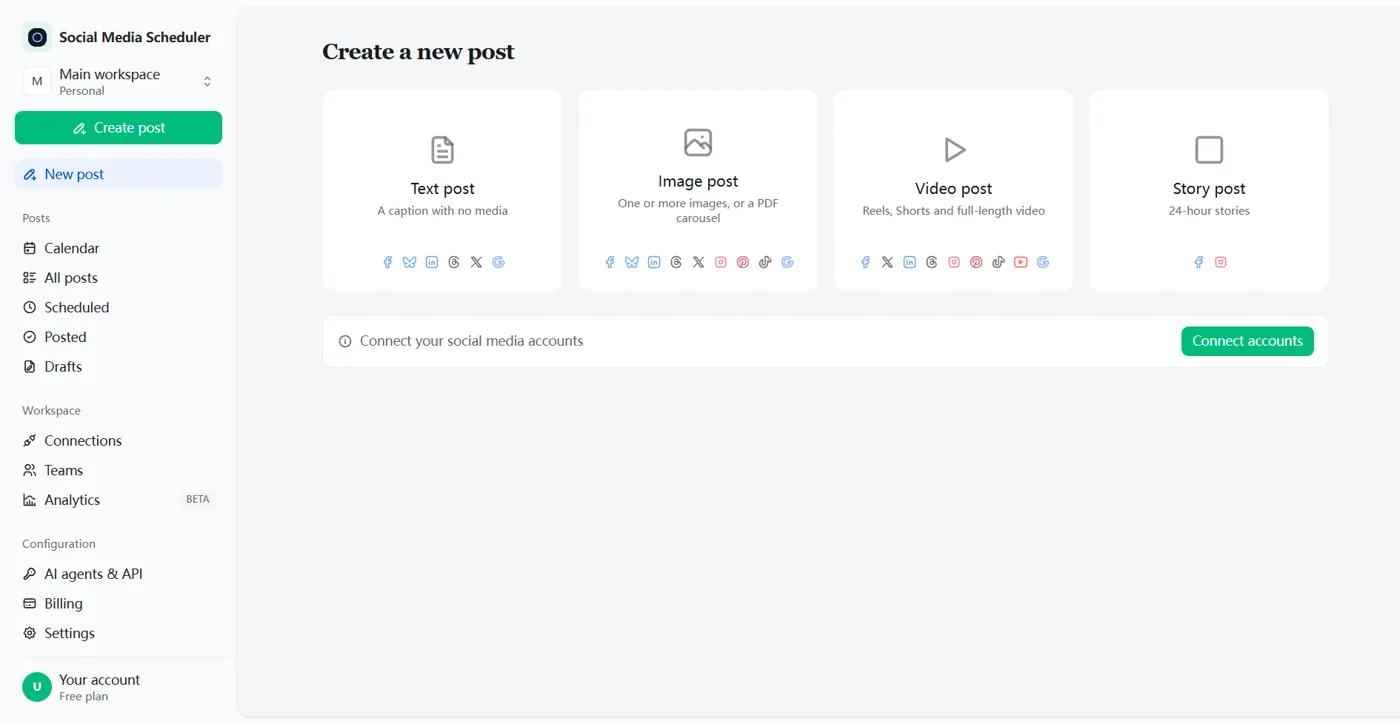
Post to LinkedIn and every other network at once
Most LinkedIn schedulers stop at LinkedIn. Here the same post can go to LinkedIn and, in the same step, to X, Threads, Facebook, Bluesky and Google Business — or with an image or video, to Instagram, TikTok, YouTube and Pinterest too.
Each network can get its own caption: a longer, professional version for LinkedIn and a shorter one for X. One scheduled post, and each platform reports back whether it went out.
LinkedIn’s built-in scheduler vs a LinkedIn post scheduler
LinkedIn’s own scheduler is free and fine for an occasional post to one account. A LinkedIn post scheduler is worth it once you post every week, manage a company page as well as your profile, or want the same post on other networks.
| LinkedIn built-in | Social Media Scheduler | |
|---|---|---|
| Price | Free | From $19.90 a month, 7-day free trial |
| How far ahead | 10 minutes to 3 months | Any date and time you pick |
| Accounts | One profile or page at a time | Profile and company pages side by side |
| Other networks | LinkedIn only | X, Threads, Facebook, Instagram, TikTok, YouTube and more |
| First comment | Posted by hand after the post goes live | Scheduled with the post |
| Overview | A list of scheduled LinkedIn posts | One calendar for every network |
LinkedIn column from LinkedIn Help, checked October 2026.
Where to find scheduled posts on LinkedIn
On LinkedIn, click Start a post, then the clock icon, then View all scheduled posts in the lower-left corner. On the mobile app, tap Post, then the clock icon, then View all. From there you can edit, reschedule or delete a scheduled LinkedIn post.
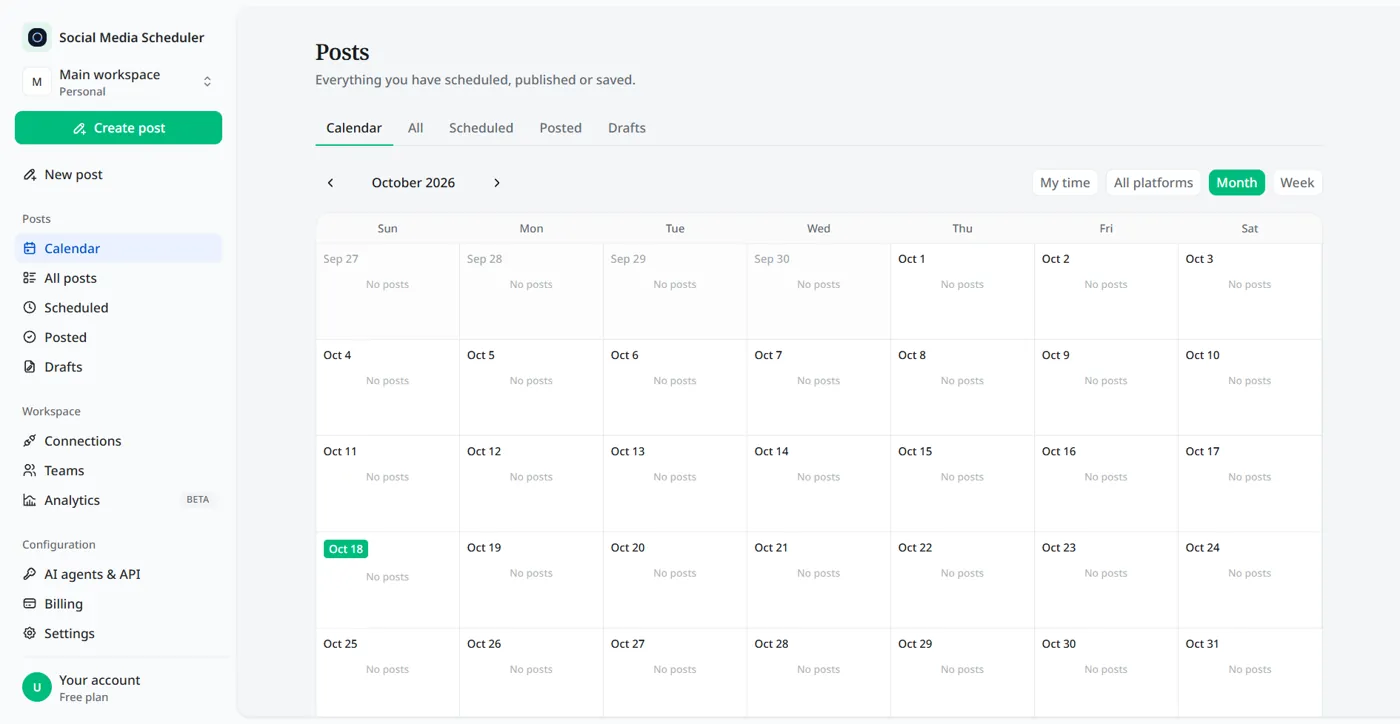
Posts scheduled here live in one place instead: the Scheduled tab and the calendar show every LinkedIn post waiting to go out, next to your posts for other networks. Filter by platform to see what goes out next on LinkedIn, and check afterwards whether each post was published.
Who uses a LinkedIn scheduler
Founders and solo marketers
You are the marketing team. Write a week of LinkedIn posts in one sitting and stop losing the morning to posting.
Consultants, coaches and freelancers
LinkedIn is where your clients find you. A steady schedule keeps you in their feed between projects, even in the weeks you are too busy to think about posting.
Small teams with a company page
Plan the company page and the founder’s profile together, so announcements go out from both on the same day.
LinkedIn post scheduler pricing
Plans are priced by account sets, not by posts. A set is one account on every platform: Solo is $19.90 a month for 1 set, Growth $39 for 5 and Agency $99 for 15, and every plan includes unlimited LinkedIn posts. Each plan starts with a 7-day free trial.
- One set covers one LinkedIn account, alongside X, Instagram and the rest. Another LinkedIn account goes in another set.
- Unlimited scheduled posts on every plan.
- Switch plans or cancel at any time.
LinkedIn post scheduler FAQ
Can you schedule posts on LinkedIn?
Yes. LinkedIn has a built-in scheduler behind the clock icon in the post box, which handles one profile or page at a time, from 10 minutes to 3 months ahead. A LinkedIn post scheduler adds a calendar, company pages next to your profile, a scheduled first comment and the same post on other networks.
Does scheduling LinkedIn posts hurt your reach?
LinkedIn has not said that scheduled posts are ranked differently from posts published by hand, and they go out through LinkedIn’s official API either way. What moves reach is the post itself and how many people react in the first hour, so schedule for when your audience is online.
Can I schedule posts to a LinkedIn company page?
Yes. If your LinkedIn account is an admin of a company page, you can schedule to that page as well as to your personal profile, and plan both from the same calendar.
Can I schedule PDF carousels to LinkedIn?
Yes. Upload the PDF in an image post and it is published as a LinkedIn document, the swipeable carousel format. Design the slides in Canva or Google Slides, export them as a PDF, and add a caption that tells people what they get by swiping.
Is there a free LinkedIn post scheduler?
LinkedIn’s own scheduler is free, but it covers one account and LinkedIn only. Social Media Scheduler has no free-forever plan, but every plan starts with a 7-day free trial — nothing is charged until it ends — so you can schedule real LinkedIn posts before you pay.
How do I edit a scheduled LinkedIn post?
On LinkedIn, click Start a post, then the clock icon, then View all scheduled posts. From there you can edit the text, pick a new time or delete the post before it goes out. Once LinkedIn has published it, open the post itself and choose Edit post to change it.
Do I need to share my LinkedIn password?
No. You connect through LinkedIn’s own sign-in screen and approve access there, the same way you sign in to any approved LinkedIn app. We never see or store your LinkedIn password, and you can disconnect the account at any time from the Connections page.
What is the best time to post on LinkedIn?
It depends on who follows you. Most professional audiences read LinkedIn on weekday mornings and around lunch in their own timezone, so start there, then check your LinkedIn analytics and move your slots toward the hours your posts get the most reactions.
Schedule your first LinkedIn post
Connect LinkedIn in about a minute, write the post, pick a time. Try every feature free for 7 days.
Start 7-day free trial