Pinterest scheduler
Pinterest Scheduler
Load up weeks of pins in one sitting, pick a time for each, and let them publish to Pinterest on their own — then send the same image or video to Instagram, TikTok and the rest of your networks.
7 days free, then from $19.90 a month. Cancel anytime.
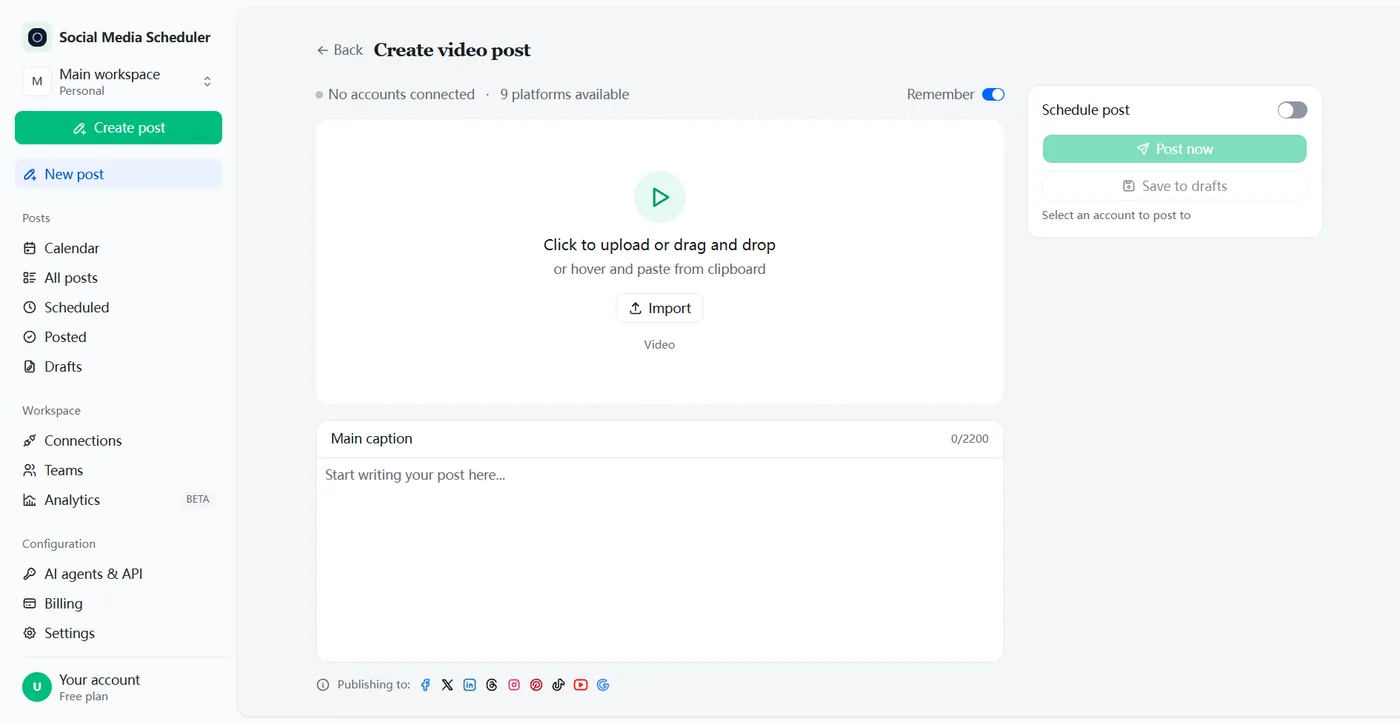
Schedule Pinterest pins in advance, without the 10-pin cap
A Pinterest scheduler lets you prepare pins ahead of time and publish them automatically at the date and time you choose. Social Media Scheduler connects to your Pinterest account, queues image and video pins with no limit on how many are waiting, and publishes each one on time while you work.
Pinterest works more like a search engine than a feed: a pin keeps getting found for months. Batch the pins once, spread them across the month, and the queue keeps your account active on the days you are busy.
Can you schedule pins on Pinterest natively?
Yes. Pinterest has a free built-in scheduler for business accounts. On desktop, click Create, then Create Pin, fill in the details, choose Publish at a later date and pick a day and time. In the app, tap the plus icon, select Pin, and set the schedule date before you tap Schedule.
The built-in scheduler has limits worth knowing: pins can be scheduled up to 30 days ahead, you schedule them one at a time, and only 10 can be waiting at once. On desktop you can pick up to 10 images and each becomes its own Pin; in the app, several images or videos are stitched into a single video Pin. That is fine for a few pins a week. Past that, a Pinterest scheduling tool saves the back-and-forth.
How to schedule pins on Pinterest with Social Media Scheduler
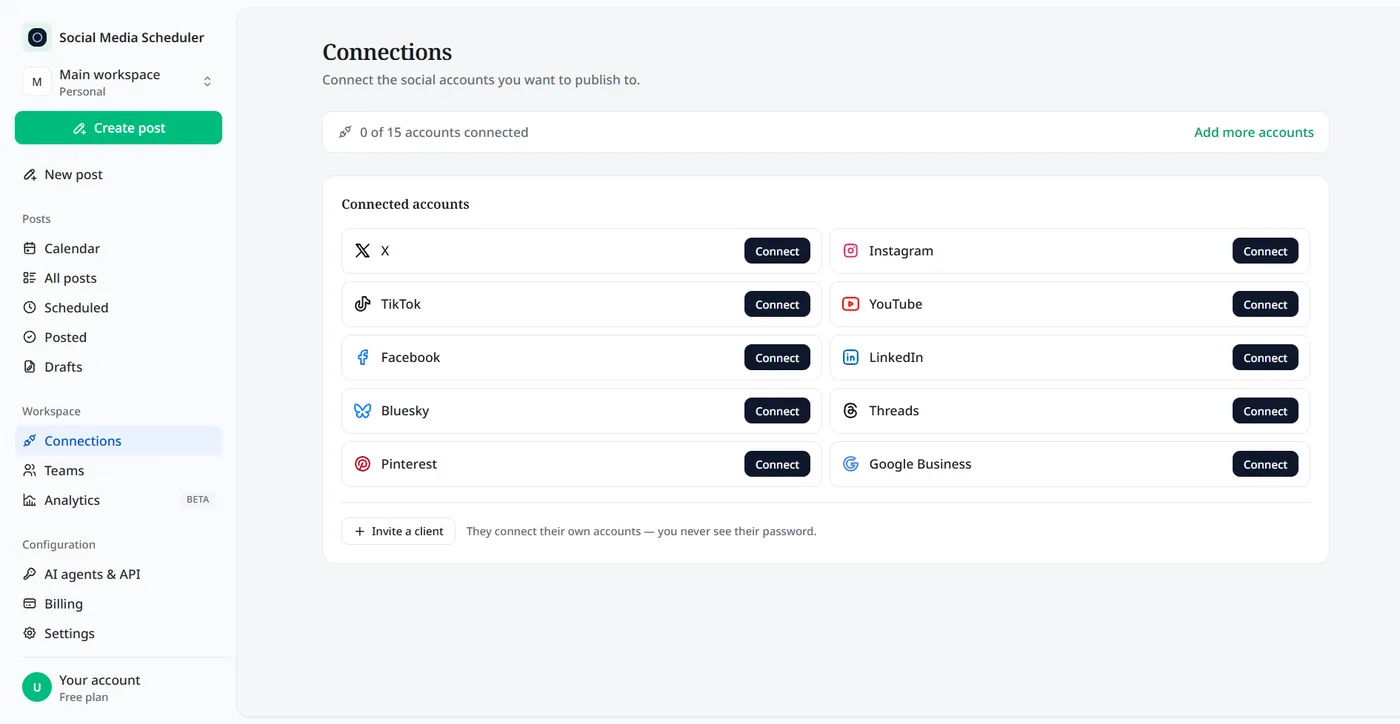
Scheduling a pin takes three steps: connect your Pinterest account, upload the image or video and write the description, then pick a date and time. The pin publishes itself when the time comes, and its status shows up in your Scheduled list.
1. Connect your Pinterest account
Click Connect next to Pinterest and approve access on Pinterest’s own sign-in screen. No password ever passes through us.
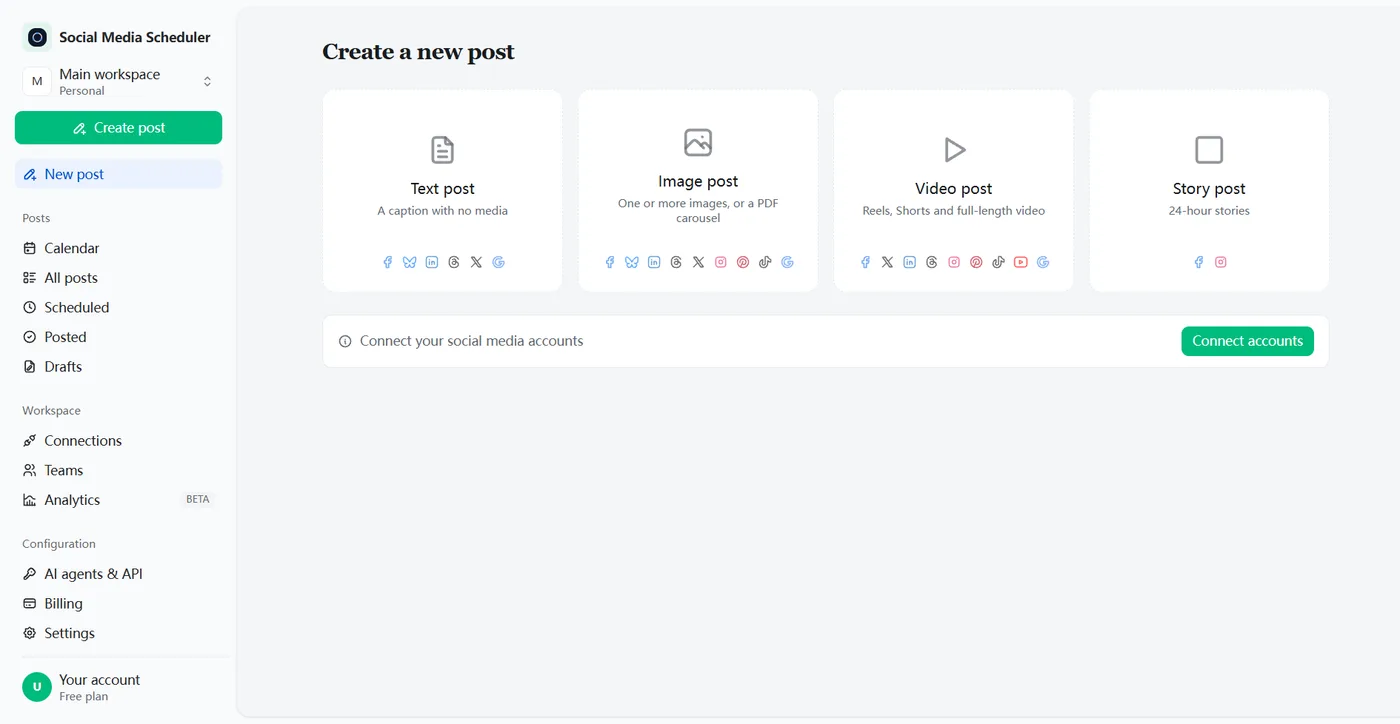
2. Upload the pin and write the description
Pick an image or video post, upload a vertical image or clip, and write the description with the words people search for on Pinterest. Pinterest needs media on every pin, so text-only posts skip it.
3. Pick a time, or post now
Turn on Schedule post, choose the date and time in your own timezone, and save. The pin waits in your Scheduled list and goes out on time; Post now publishes it straight away.
What goes into a pin worth scheduling
A pin is found through search long after it goes out, so the parts around the image matter as much as the image itself. Here is what Pinterest looks at.
Image pins
Vertical images in a 2:3 shape take up the most room in the feed. Put a short, readable headline on the image itself — most people see the pin on a phone before they read anything else.
Video pins
Idea Pins have been folded into regular pins, so a short vertical video is now simply a video pin. Schedule one here and the same clip can go to TikTok, Instagram Reels and YouTube Shorts in the same post.
Title, description and keywords
Pinterest matches pins to searches through their words. Write the description the way someone would search for the idea — “easy weeknight pasta”, not “Tuesday’s post” — and keep the most important words near the start.
Boards
Every pin lives on a board, and the board name is another signal for what the pin is about. Keep boards narrow and clearly named so new pins land somewhere that already ranks for the topic.
Destination link
The link is what turns a saved pin into a visit to your blog post or product page. Point each pin at the exact page it shows, not your homepage, and check the link still works before older pins are scheduled again.
Post pins to Pinterest and every other network at once
Most Pinterest schedulers stop at Pinterest. Here the same image or video can go to Pinterest and, in the same step, to Instagram, Facebook, X, LinkedIn, Threads and Bluesky — and a video to TikTok and YouTube as well.
One scheduled post, and each platform reports back whether it went out.
Pinterest’s native scheduler vs a Pinterest scheduler
Pinterest’s own scheduler is free and fine for a handful of pins a week. A Pinterest scheduler is worth it once you want more than 10 pins in the queue, plan further than a month ahead, or post the same content to other networks.
| Pinterest built-in | Social Media Scheduler | |
|---|---|---|
| Price | Free | From $19.90 a month, 7-day free trial |
| How far ahead | Up to 30 days | Any date and time you pick |
| Pins waiting at once | Up to 10 | No limit |
| Account | Business accounts only | The Pinterest account you connect |
| Other networks | Pinterest only | Instagram, TikTok, YouTube, Facebook, X, LinkedIn and more |
| Overview | Scheduled pins on your profile | One calendar for every network |
Pinterest column from Pinterest Business help, checked October 2026.
Where to find scheduled pins on Pinterest
Scheduled pins live on your Pinterest profile, above the pins you have already published. A pin you just scheduled can take a few minutes to appear. To change one, open it to edit the publish date, title, board, description or link — the image or video itself cannot be changed — or click the ellipsis under it and choose Delete.
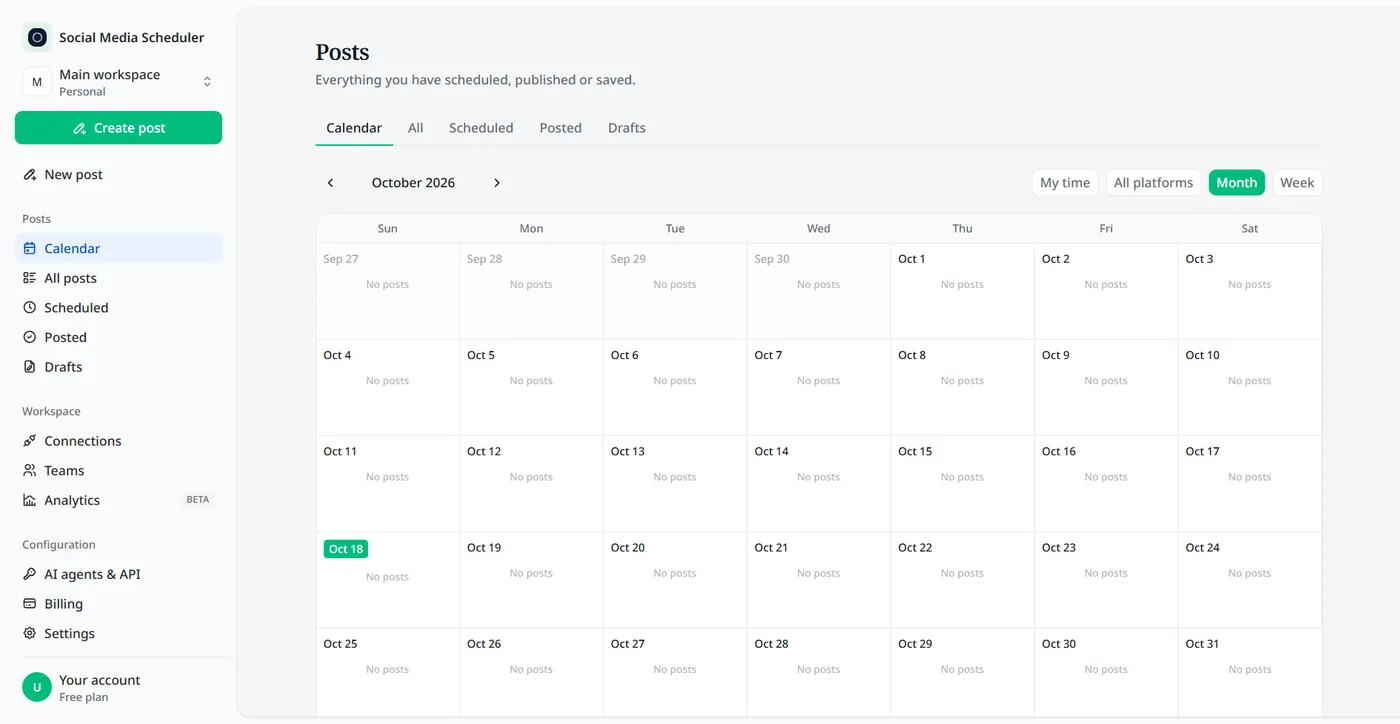
Pins scheduled here live in one place instead: the Scheduled tab and the calendar show every pin waiting to go out, next to your posts for other networks. Filter by platform to see what goes out next on Pinterest, and check afterwards whether each pin was published.
How many pins to schedule, and the best time to post on Pinterest
Steady beats bursty. A few fresh pins every day, or every other day, does more than a big batch once a week, because each one gets its own chance to be picked up. Pick a number you can keep up for months, then let the scheduler hold the pace.
There is no single best time to post on Pinterest, since people search it at all hours and pins keep surfacing long after they go out. Evenings and weekends are a sensible start for food, home and style ideas. Check Pinterest Analytics after a month and move your slots toward the days that bring the most saves and clicks.
Looking for a Tailwind alternative?
Tailwind is built around Pinterest, and if Pinterest is the only network you care about, a Pinterest-only tool may suit you. If you also post to Instagram, TikTok, YouTube or LinkedIn, paying for a Pinterest tool and a second scheduler adds up. Here one plan covers Pinterest and every other network, with unlimited scheduled posts on one calendar.
Who uses a Pinterest scheduler
Bloggers and recipe creators
Pinterest is often the biggest source of blog traffic. Pin every new post and a few older ones each week without thinking about it.
Online shops and Etsy sellers
Product photos make natural pins. Schedule them ahead of the seasons people plan for — holidays, weddings, back to school — and post the same shots to Instagram.
Creators and small teams
Turn the vertical videos you already make for TikTok and Reels into video pins, and plan every network from the same calendar.
Pinterest scheduler pricing
Plans are priced by account sets, not by posts. A set is one account on every platform: Solo is $19.90 a month for 1 set, Growth $39 for 5 and Agency $99 for 15, and every plan includes unlimited pins. Each plan starts with a 7-day free trial.
- One set covers one Pinterest account, alongside Instagram, TikTok and the rest. Another Pinterest account goes in another set.
- Unlimited scheduled posts on every plan.
- Switch plans or cancel at any time.
Pinterest scheduler FAQ
Can you schedule pins on Pinterest?
Yes. Pinterest has a built-in scheduler for business accounts: create a Pin, choose Publish at a later date and pick a day and time up to 30 days ahead. You can have up to 10 Pins scheduled at once. A Pinterest scheduler removes that cap and puts your pins on the same calendar as your other networks.
Is there a free Pinterest scheduler?
Pinterest’s own scheduler is free, but it only holds 10 pins at a time and covers Pinterest only. Social Media Scheduler has no free-forever plan, but every plan starts with a 7-day free trial — nothing is charged until it ends — so you can schedule real pins before you pay.
How many pins can you schedule on Pinterest?
With Pinterest’s built-in scheduler, up to 10 Pins can be waiting at once, each up to 30 days ahead, and you schedule them one at a time. Posts scheduled here have no such cap: every plan includes unlimited scheduled posts.
Where do I find my scheduled pins on Pinterest?
Go to your Pinterest profile. Scheduled Pins appear above your published Pins, and a newly scheduled Pin can take a few minutes to show up. Pins scheduled here are listed in the Scheduled tab and on the calendar instead.
Can I schedule video pins?
Yes. Choose a video post, upload the clip and pick Pinterest. Idea Pins no longer exist as a separate format, so a scheduled video goes out as a regular video Pin — and the same file can go to TikTok, Instagram Reels and YouTube Shorts in the same post.
Does scheduling pins hurt your reach?
Pinterest has not said that scheduled Pins are treated differently from Pins saved by hand, and they publish through Pinterest’s official API. What moves reach is a clear vertical image, a description with the words people search for, and pinning steadily instead of in bursts.
Do I need to share my Pinterest password?
No. You connect through Pinterest’s own sign-in screen and approve access there. We never see or store your Pinterest password, and you can disconnect the account at any time from the Connections page.
Schedule your first pin
Connect Pinterest in about a minute, upload the pin, pick a time. Try every feature free for 7 days.
Start 7-day free trial