YouTube scheduler
YouTube Scheduler
Upload your video once, pick a time, and it goes out on your YouTube channel — and, if you like, as a TikTok and an Instagram Reel at the same moment.
7 days free, then from $19.90 a month. Cancel anytime.
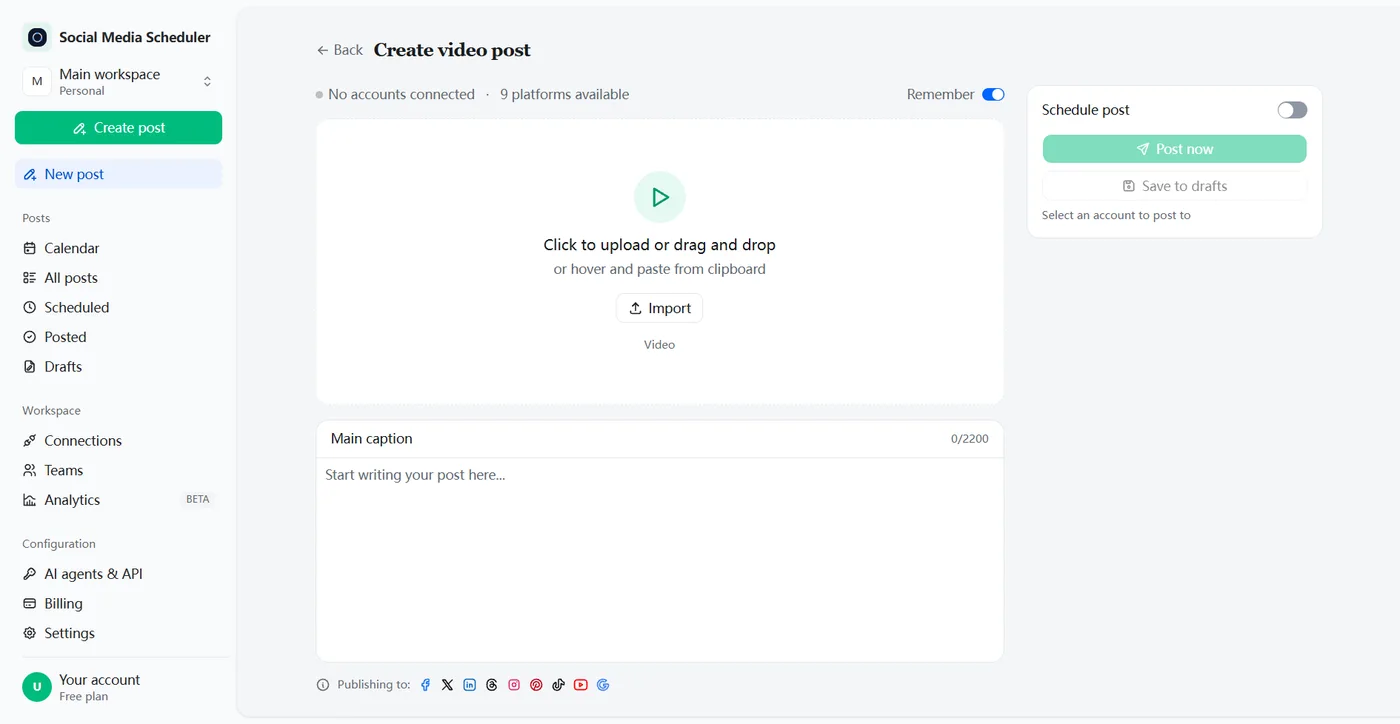
Schedule YouTube videos and Shorts ahead of time
A YouTube scheduler lets you upload a video now and have it published to your channel automatically at the date and time you choose. Social Media Scheduler connects to your YouTube channel, takes long-form videos and Shorts through the same composer, and publishes each one on time while you film the next.
Channels grow on a steady upload rhythm. Edit a batch of videos on the weekend, schedule them across the week, and your channel keeps posting on the busy days.
One upload to YouTube Shorts, TikTok and Instagram Reels
Most creators post the same vertical video three times: once as a YouTube Short, once on TikTok, once as an Instagram Reel, each in its own app. Here you upload the video once, tick YouTube, TikTok and Instagram, and schedule all three for the same time.
The same post can also go to Facebook, X, LinkedIn, Threads, Pinterest and Google Business. When the time comes, each network reports back whether the video went out, so you can see at a glance that the Short is live everywhere. More on posting to all social media at once.
How to schedule a YouTube video
Yes, you can schedule YouTube videos, either in YouTube Studio or with a YouTube scheduler. Both work the same way: upload the video, add the details, then pick a date and time. Until that moment the video stays private, and then it turns public on its own.
In YouTube Studio (free, YouTube only)
- Sign in to YouTube Studio and click Create, then Upload videos.
- Pick the file and fill in the title, description and other details.
- On the Visibility step, choose Schedule.
- Set the date, time and time zone, then click Schedule.
To change the time later, open Content, select the video and edit its Visibility. The watch page shows the publish date in Pacific time, so a video scheduled late in the evening in Asia or Europe can show the previous day.
With Social Media Scheduler (YouTube and every other network)
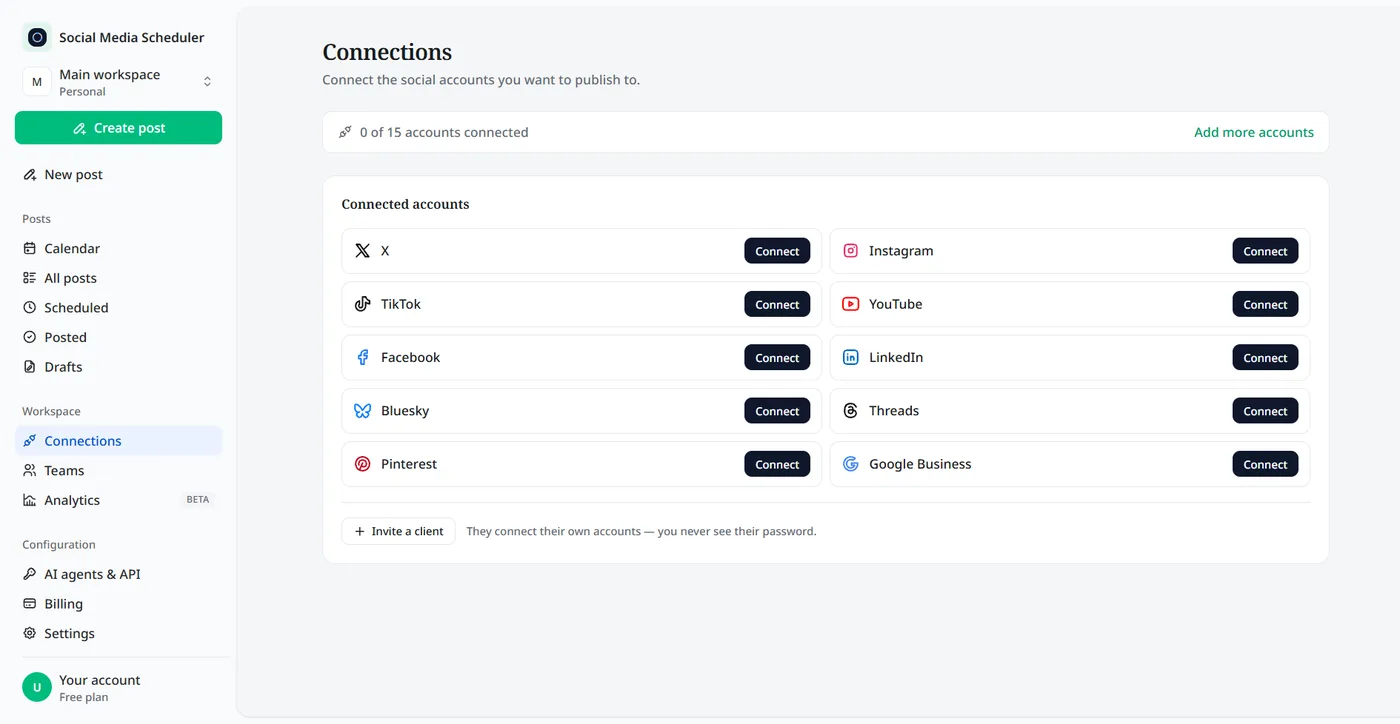
1. Connect your YouTube channel
Click Connect next to YouTube and approve access on Google’s own sign-in screen. No password ever passes through us.
2. Upload the video
Choose Video post, drop in the file and write the caption. Give the video its own YouTube title of up to 100 characters; the full caption goes into the description. Then say whether it is made for kids and pick public, unlisted or private.
3. Pick a time, or post now
Turn on Schedule post and choose the date and time in your own timezone. The video waits in your Scheduled list and goes out on time; Post now publishes it straight away.
How to schedule YouTube Shorts
YouTube Shorts are scheduled exactly like regular videos. A Short is a vertical video of up to 3 minutes, and YouTube files it under Shorts on its own; there is no separate Shorts scheduler. Upload the vertical file, choose Schedule, set the time.
The difference is volume: creators film ten Shorts in a day and spread them over two weeks. YouTube Studio uploads up to 15 videos at a time, but each still needs its own details and publish time. Here each Short is set once and goes to TikTok and Reels too.
Schedule YouTube Shorts on your phone
YouTube lets you schedule from its app as well as from Studio on a computer: upload the Short from your camera roll, open its visibility setting, choose Schedule and pick the time. It is handy for a single Short; for a week of Shorts on several networks, a computer is quicker.
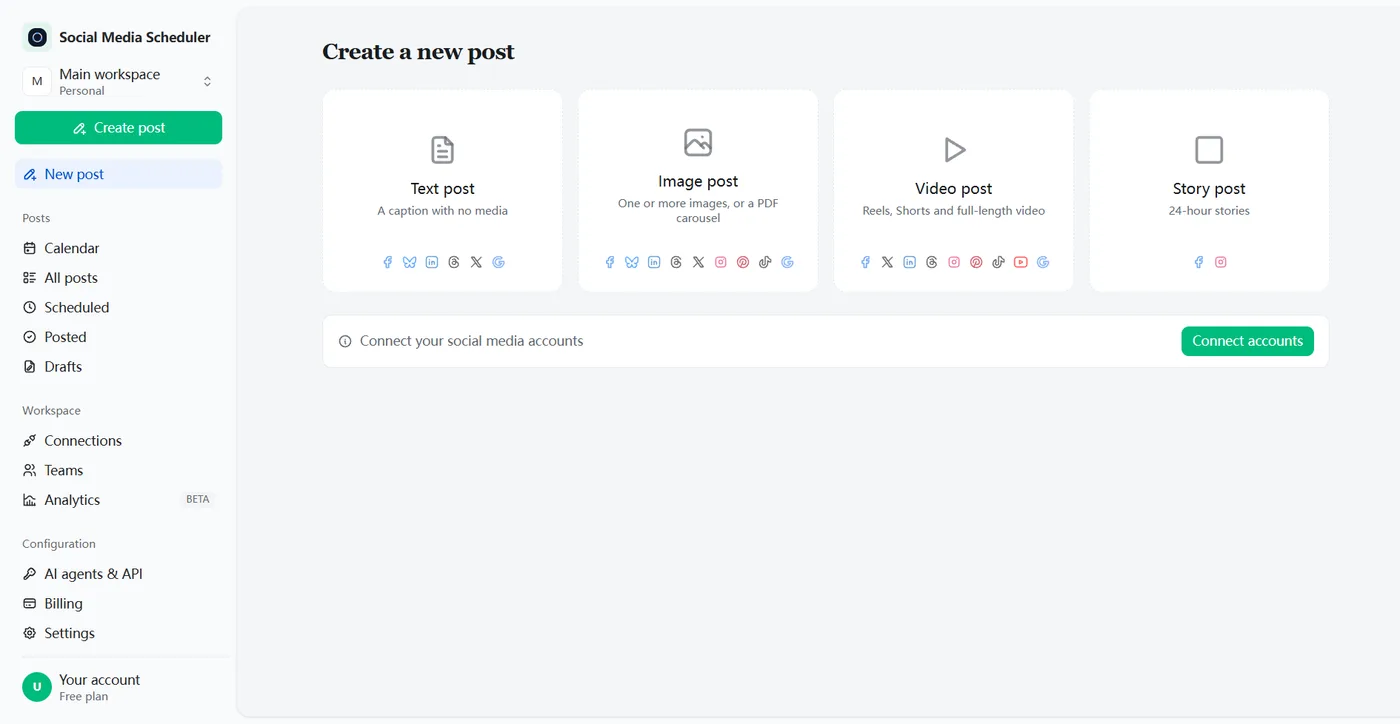
What to set before a YouTube video goes out
A YouTube upload carries more than a caption. Here is what YouTube asks for and how each part works.
Title and description
Titles can be up to 100 characters. Put the words people search for at the front, and use the description for context, links and chapters.
Custom thumbnail
For long-form videos the thumbnail decides most clicks. YouTube asks you to verify your channel before you can upload custom thumbnails, and you can change one in Studio at any time, even after the video is public.
Audience, playlists and tags
Every video needs an audience setting saying whether it is made for kids. Playlists keep viewers watching your next video, and tags mainly help with misspelled searches.
Premiere or schedule
A Premiere turns the first play into an event, with a public countdown page and live chat. A plain scheduled upload simply goes public. Premieres are not available for Shorts.
Best time to post on YouTube
The best time to post on YouTube is shortly before your own viewers come online. YouTube shows you when that is: in YouTube Studio, open Analytics, then Audience, and look at the report called When your viewers are on YouTube, which covers the last 28 days.
Schedule the video an hour or two before the darkest block on that chart, so it is processed and ready when people arrive. The same applies to Shorts. YouTube Help says publish time is not known to change a video’s long-term performance, so do not hold back a finished video waiting for a perfect hour.
YouTube Studio’s scheduler vs a YouTube scheduler
YouTube Studio’s scheduler is free and fine if you only post to one YouTube channel. A YouTube scheduler is worth it once the same video also goes to TikTok and Reels, or you run more than one channel.
| YouTube Studio | Social Media Scheduler | |
|---|---|---|
| Price | Free | From $19.90 a month, 7-day free trial |
| Where you schedule | YouTube Studio on a computer, or the YouTube app | In your web browser, nothing to install |
| Time zone | You set date, time and time zone for each video | Date and time in your own timezone |
| Channels | The channel you are signed in to | Several channels in one post, one per account set |
| Other networks | YouTube only | TikTok, Instagram Reels, Facebook, X, LinkedIn and more |
| Overview | Your Content list in YouTube Studio | One calendar for every network |
YouTube Studio column from YouTube Help, checked October 2026.
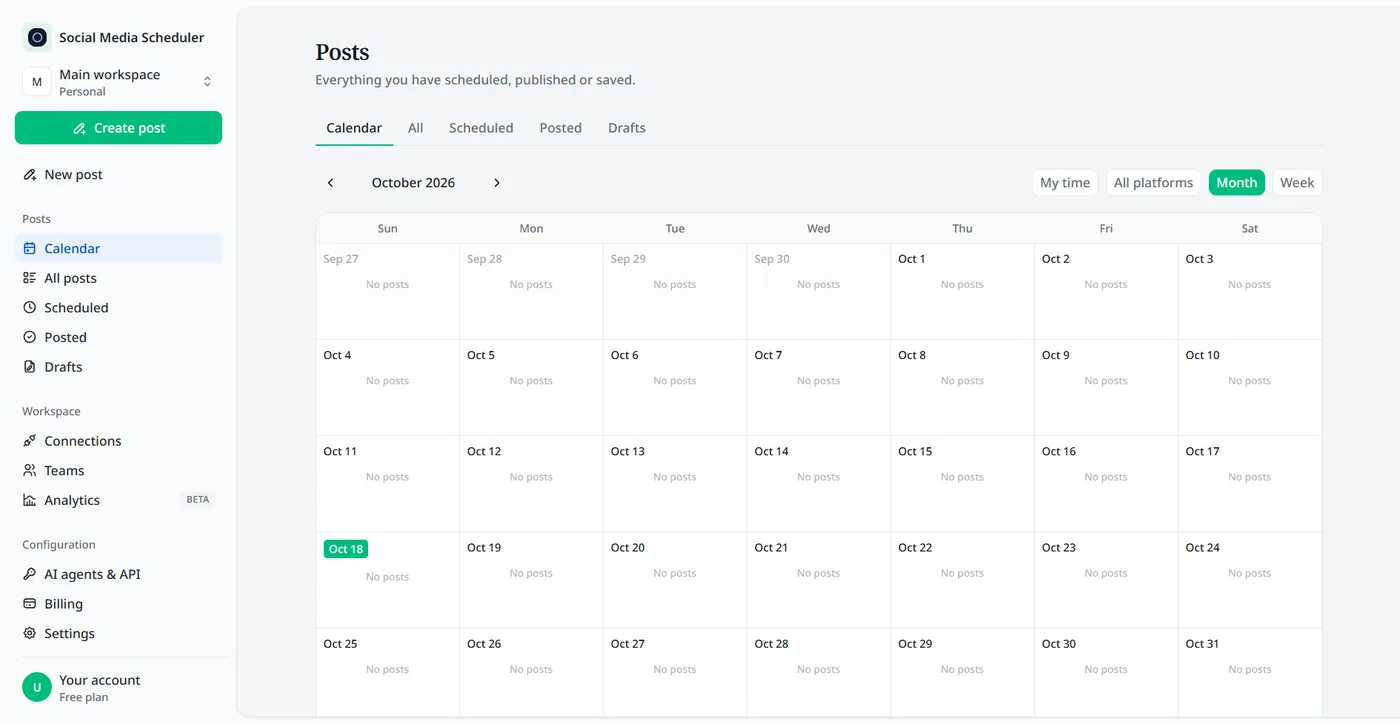
Plan your YouTube upload schedule on a calendar
A YouTube upload schedule only works if you can see it. The calendar shows every video waiting to go out, next to your posts for other networks, and the Scheduled and Posted tabs show what is next and whether each upload went through.
Who uses a YouTube scheduler
Short-form creators
Film a batch of Shorts, then let the queue post one a day to YouTube, TikTok and Reels instead of uploading three times.
Small businesses and coaches
Tutorials and product videos go out on a fixed day while you run the business, along with the rest of your social posts.
Agencies running several channels
Keep each client’s channel in its own account set and plan them all from one calendar.
YouTube scheduler pricing
Plans are priced by account sets, not by posts. A set is one account on every platform: Solo is $19.90 a month for 1 set, Growth $39 for 5 and Agency $99 for 15, and every plan includes unlimited YouTube uploads. Each plan starts with a 7-day free trial.
- One set covers one YouTube channel, alongside TikTok, Instagram and the rest. Another channel goes in another set.
- Unlimited scheduled posts on every plan.
- Switch plans or cancel at any time.
YouTube scheduler FAQ
Can you schedule YouTube videos?
Yes. In YouTube Studio, upload the video, open Visibility, choose Schedule and set the date, time and time zone. The video stays private until then. A YouTube scheduler does the same from outside YouTube, and can send the video to other networks at the same time.
Can you schedule YouTube Shorts?
Yes. A Short is a vertical video of up to 3 minutes, and it is scheduled the same way as any other upload: set the visibility to Schedule and pick a time. Here, upload the vertical video once and schedule it to YouTube, TikTok and Instagram Reels together.
How do I schedule a YouTube video on my phone?
YouTube says you can schedule from the YouTube app as well as from YouTube Studio on a computer. In the app, upload the video, open the visibility setting, choose Schedule and pick the date and time. Shorts follow the same steps as any other video.
Why didn’t my scheduled YouTube video go public?
Check three things. If the channel has a Community Guidelines strike, YouTube does not publish scheduled videos during the penalty period. A video that is still processing or held by a copyright or policy check can stay private. And the date on the watch page is based on Pacific time, so it can look a day off.
What is the difference between a Premiere and a scheduled video?
A scheduled video simply turns public at the time you set. A Premiere creates a public watch page in advance with a countdown, reminders and live chat, so viewers watch the video together the first time it plays. YouTube does not support Premieres for Shorts.
Does scheduling a YouTube video affect views?
No. A scheduled video becomes a normal public upload at the time you set. YouTube Help says publish time is not known to affect a video’s long-term performance; timing matters most for Premieres and live streams. Schedule for when your viewers are online so the first hours start well.
Is there a free YouTube scheduler?
YouTube Studio’s scheduler is free, but it covers YouTube only. Social Media Scheduler has no free-forever plan, but every plan starts with a 7-day free trial — nothing is charged until it ends — so you can schedule real videos before you pay.
Can I schedule videos to more than one YouTube channel?
Yes. Each account set holds one YouTube channel next to your other accounts. Pick several sets in the composer and the same video is scheduled to each set’s channel in one go. Solo covers 1 set, Growth 5 and Agency 15.
Do I need to share my Google password?
No. You connect your channel on Google’s own sign-in screen and approve access there. We never see or store your Google password, and you can disconnect the channel at any time from the Connections page, which also removes our access.
Schedule your first YouTube video
Connect your channel in about a minute, upload the video, pick a time. Try every feature free for 7 days.
Start 7-day free trial