X (Twitter) scheduler
Schedule Tweets on X (Twitter)
Write your tweet or thread once, pick a time, and let it post itself to X — then send the same text to Threads, Bluesky and LinkedIn in the same step.
7 days free, then from $19.90 a month. Cancel anytime.
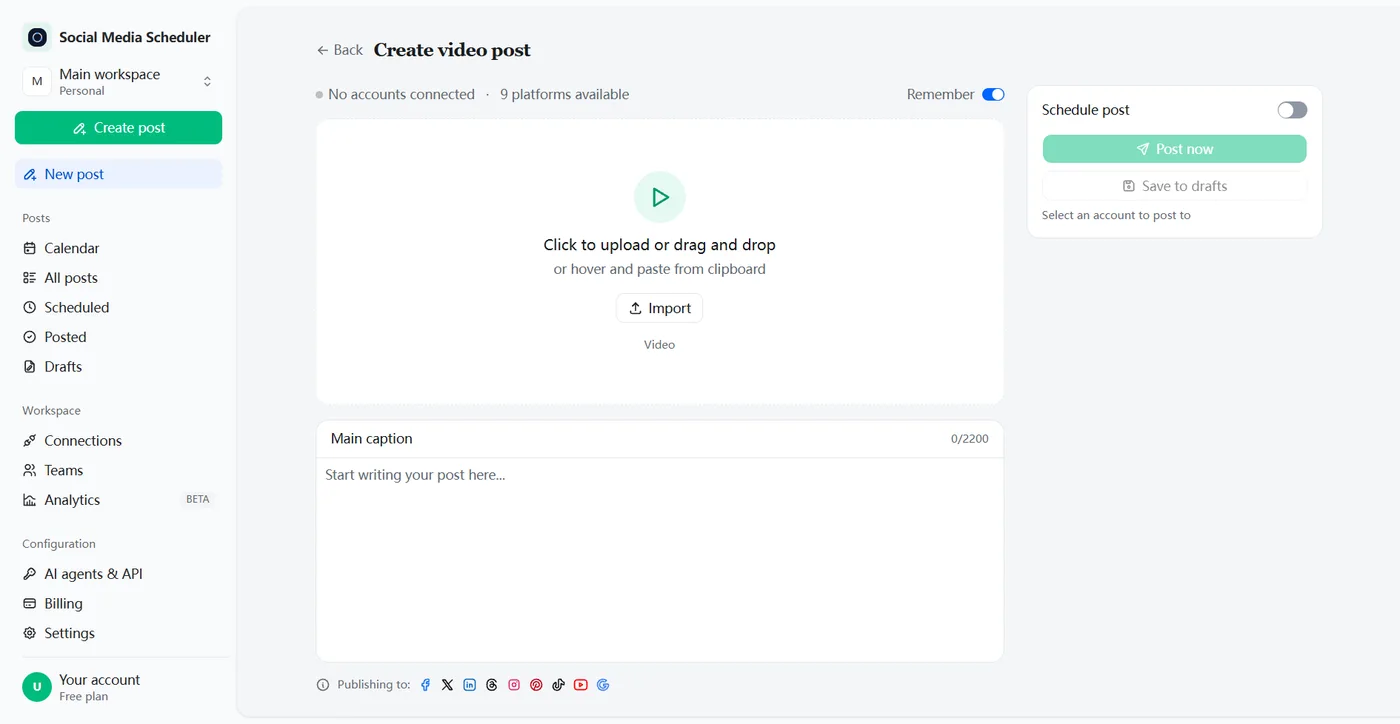
Schedule tweets in advance and let them post themselves
A tweet scheduler lets you write X posts ahead of time and publish them automatically at the date and time you choose. Social Media Scheduler connects to your X account, queues text, image and video tweets, turns long posts into threads, and publishes each one on time while you get on with your day.
How to schedule tweets
To schedule a post on X (Twitter) for free, write it in the compose box on x.com, select the calendar icon, pick a date and time, and confirm. To schedule threads, or the same post to other networks, connect X to a tweet scheduler, write once and pick a time. Both publish on their own.
On x.com, for free
- Open the compose box at the top of your Home timeline, or select Post in the menu.
- Write your tweet and add up to 4 photos, a GIF or a video.
- Select the calendar icon at the bottom and set the date and time.
- Select Confirm. The tweet now waits in Unsent posts.
With Social Media Scheduler
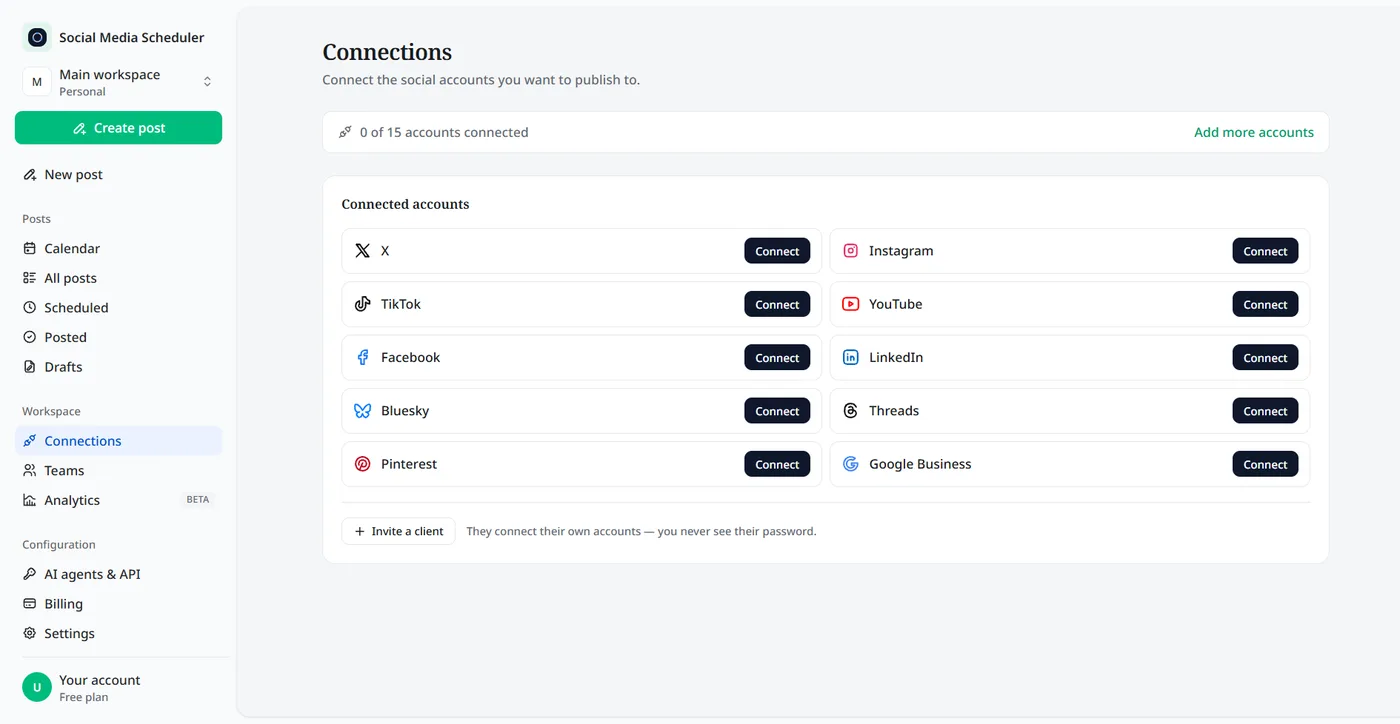
1. Connect your X account
Open Connections, click Connect next to X and approve access on X’s own sign-in screen. Your password never passes through us.
2. Write the tweet or thread
Pick a text, image or video post. Keep it under 280 characters for one tweet, or write longer and leave a blank line where each tweet of the thread should start.
3. Pick a time, or post now
Turn on Schedule post and choose the date and time in your own time zone. The tweet goes out on time and X’s result comes back to you — or use Post now to send it straight away.
What you can schedule to X
The post types people use most on Twitter can all be scheduled: single tweets, threads, image tweets and video tweets. One thing works differently from posting by hand, and that is links.
Text tweets
Plain posts of up to 280 characters, with your line breaks, emoji, hashtags and @mentions. Text tweets are the easiest to batch: write ten on Monday and spread them across the week.
Threads
Write the whole thread in one caption of up to 2,200 characters. Anything over 280 characters is split into a thread — on paragraph breaks first, then line breaks, then words — so no tweet stops in the middle of a sentence. You do not need X Premium, because each part is a normal tweet. That matters because X’s own scheduler is built around one post at a time, and some users report it will not schedule a thread at all.
Image tweets
Attach one image to the post — a screenshot, a chart, a quote card. Each scheduled post carries one image, so for an album of four, post it from X directly.
Video tweets
Upload a video and schedule it to X next to TikTok, YouTube and Instagram Reels, so one clip covers every channel you post to.
Links
URLs are removed from the X version before it is published, because X’s API charges apps far more to publish a post that contains a link. Many accounts already keep links out of the main tweet and post them in the first reply instead, so the tweet reads cleanly in the feed. Do the same once your tweet is live. Threads, Bluesky and LinkedIn keep the link.
Post the same text to Threads, Bluesky and LinkedIn at once
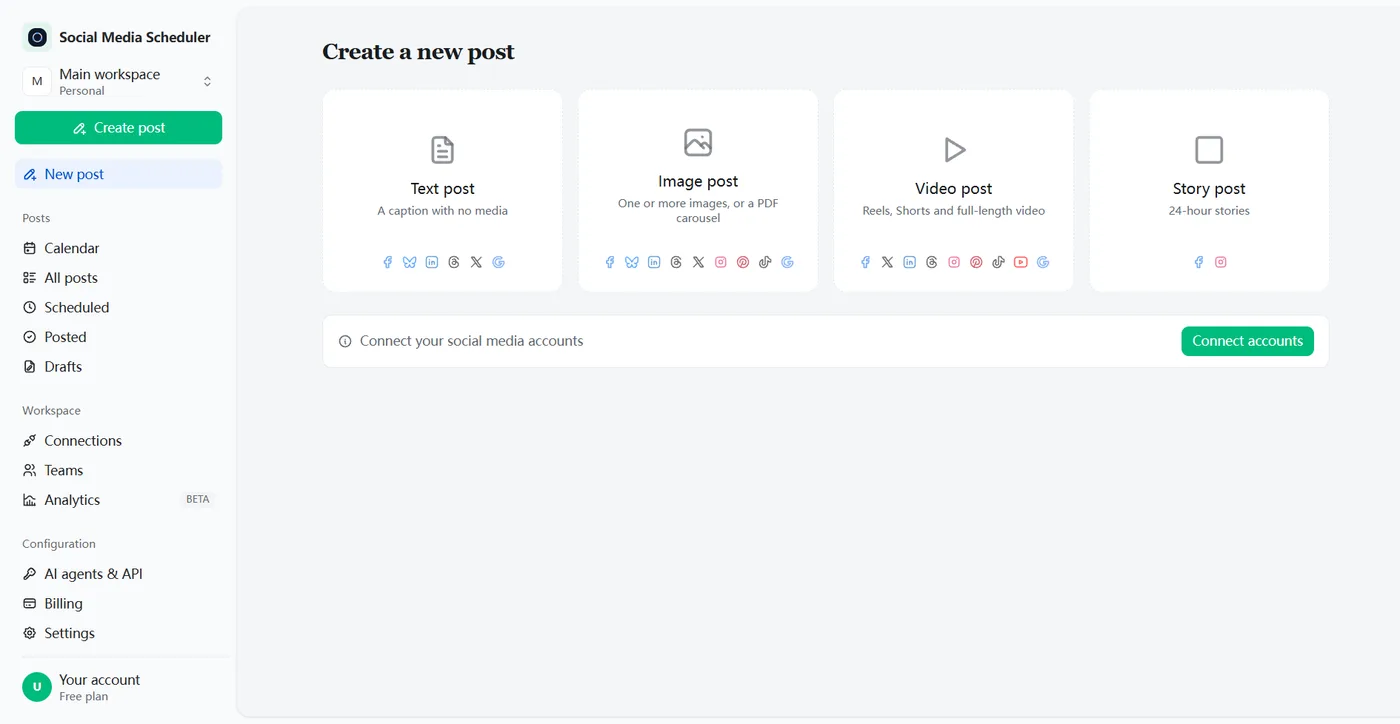
Most tweet schedulers stop at X. Here the same post can go to X and, in the same step, to Threads, Bluesky and LinkedIn — plus Facebook and Google Business. Pick the networks under the caption, and one scheduled post covers them all.
Each network gets the caption in the shape it accepts: a thread of 280-character tweets on X, posts of up to 500 characters on Threads and 300 on Bluesky, and one post of up to 3,000 characters on LinkedIn. Each platform then reports back whether it went out.
X’s built-in scheduler vs a Twitter scheduling tool
X’s own scheduler is free and does not need Premium, which makes it fine for an occasional tweet. A Twitter scheduling tool is worth it once you post every day, write threads, or want the same post on Threads, Bluesky and LinkedIn without copying it over.
| X built-in | Social Media Scheduler | |
|---|---|---|
| Price | Free, no X Premium needed | From $19.90 a month, 7-day free trial |
| Where you schedule | The compose box on x.com | One dashboard for every network |
| Long posts | 280 characters; up to 25,000 with X Premium | Split into a thread of 280-character tweets |
| Media | Up to 4 photos, a GIF or a video | One image or one video per post |
| Links | Kept in the post | Removed before publishing; add the link in a reply |
| Other networks | X only | Threads, Bluesky, LinkedIn, Facebook and more |
| Finding scheduled posts | Unsent posts, from the compose box | Scheduled tab and a calendar for every network |
X column from the X Help Center (How to Post and About X Premium), checked October 2026.
How to see, edit and delete scheduled tweets
On x.com, open the post compose box, select Unsent posts and switch to the Scheduled tab. Every tweet waiting to go out from the account you are signed in to is listed there. Open one to rewrite it, move it to a new time or delete it before X publishes it.
Check that list whenever you run more than one account. A common mistake is scheduling from the wrong account and then not finding the tweet again, because each account only shows its own unsent posts.
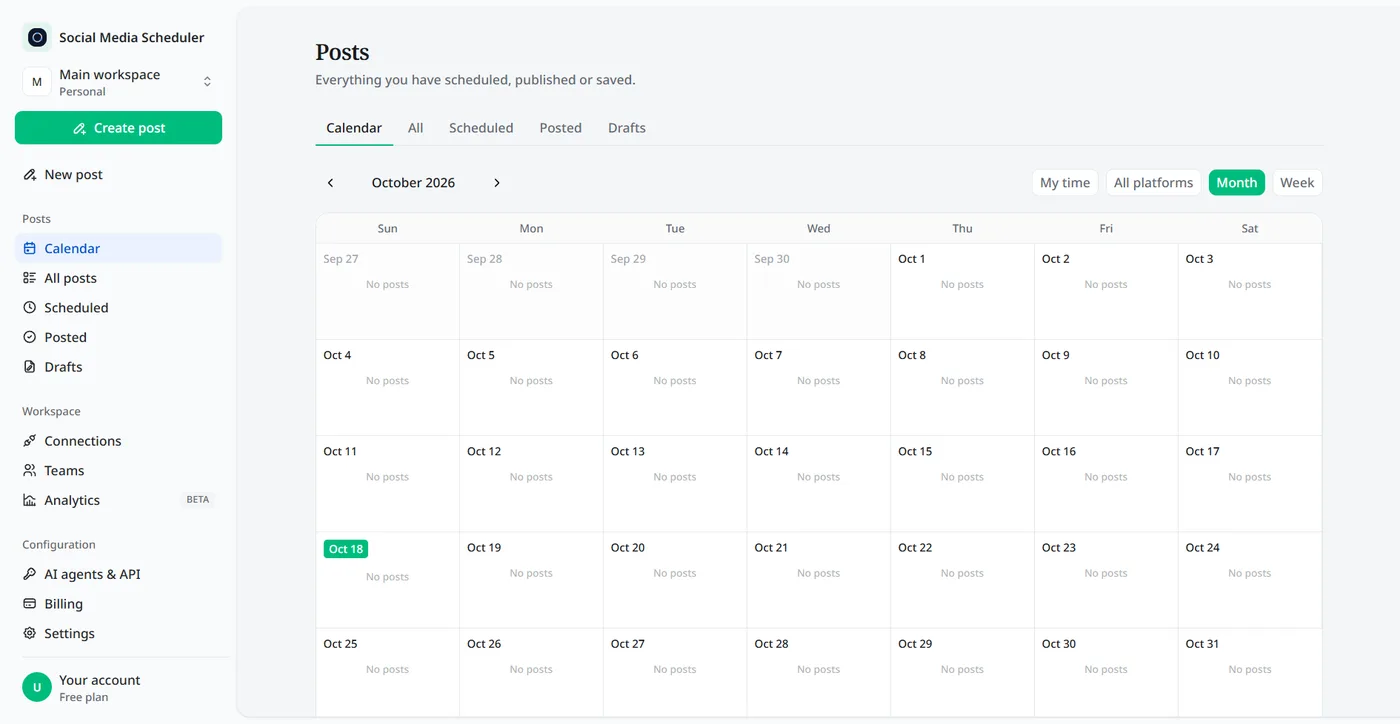
Tweets scheduled here live in one place instead: the Scheduled tab and the calendar show every tweet and thread waiting to go out, next to your posts for other networks. Filter by platform to see only X, or switch between month and week.
Can you schedule tweets on mobile?
Not reliably in the X app. X’s Help Center only describes scheduling in the compose box on x.com, and iPhone and Android users report that the schedule option has disappeared from the app. To schedule tweets, use x.com on a computer, or a tweet scheduler that runs in your web browser.
Social Media Scheduler is a web app, so there is nothing to install: sign in from the browser, write the tweet, pick a time. Once a tweet is scheduled it goes out on its own, whether or not your phone or laptop is on.
Automate tweets without a bot
Automated Twitter posts do not need a bot or a script. Scheduling is the automation: write the tweets once, give each a date and time, and they publish themselves through X’s official connection while you are offline. That keeps the account yours, in your own words, inside X’s rules.
Recurring and evergreen tweets
Some tweets stay useful for months: a pinned guide, a product tip, a link to your newsletter. Accounts that recycle them reword each repeat and space them weeks apart, because X can reject a tweet that duplicates a recent one.
Who uses a Twitter post scheduler
Founders building in public
Share progress every day without stopping work to tweet. Write the week’s updates on Sunday and let them go out while you ship.
Writers and creators with threads
Draft threads when the idea is fresh and schedule them for the hours your followers read, then post the same thread to Threads and Bluesky.
Small teams and solo marketers
Plan product news for X next to LinkedIn and Facebook, so an announcement goes out everywhere on the same day.
Tweet scheduler pricing
Plans are priced by account sets, not by posts. A set is one account on every platform: Solo is $19.90 a month for 1 set, Growth $39 for 5 and Agency $99 for 15, and every plan includes unlimited scheduled tweets. Each plan starts with a 7-day free trial.
- One set covers one X account, alongside Threads, Bluesky, LinkedIn and the rest. A second X account goes in a second set.
- Unlimited scheduled posts and threads on every plan.
- Switch plans or cancel at any time.
Schedule tweets FAQ
Can you schedule tweets on Twitter?
Yes. On x.com, write your post, select the calendar icon at the bottom of the compose box, pick a date and time, then select Confirm. That works for one account and X only. A tweet scheduler adds a calendar, automatic threads and the same post on Threads, Bluesky and LinkedIn.
Do I need X Premium to schedule tweets?
No. X’s own Help Center lists scheduling as part of the normal compose box, and it is not among the X Premium features. Premium is what you need for posts longer than 280 characters. Our scheduler does not need Premium either: long text is split into a thread instead.
Do scheduled tweets get fewer views?
X has not said that scheduled posts are ranked differently from posts sent by hand, and both are published to the same account. What moves views is the post itself, the time it goes out and the replies it gets early on, so schedule for the hours your followers are online.
Can I schedule a Twitter thread?
Yes. Write the whole thread in one caption, with a blank line between the parts. Anything over 280 characters is split into a thread on paragraph breaks first, then line breaks, then words, so each tweet reads the way you wrote it. A short post goes out as a single tweet.
Why was the link removed from my scheduled tweet?
X charges apps a lot more to publish posts that contain a URL, so links are stripped from the X version before it goes out. It is a real limitation. If the link matters, post it as a reply under the tweet once it is live, or point people to your profile link.
Can I schedule tweets to more than one X account?
Each account set connects one X account, next to its other networks. To schedule for a second X account, such as a client or a side project, add a second set for it: Growth includes 5 sets and Agency 15.
Is there a free tweet scheduler?
X’s own scheduler on x.com is free and fine for the occasional post. Social Media Scheduler has no free-forever plan, but every plan starts with a 7-day free trial — nothing is charged until it ends — so you can schedule real tweets and threads before you decide to pay.
How do I edit a scheduled tweet?
On x.com, open the post compose box, select Unsent posts, switch to the Scheduled tab and open the tweet you want to change. From there you can rewrite it, pick a new time or delete it. Once it has gone out, only X Premium’s one-hour edit window can change it.
Schedule your first tweet
Connect X in about a minute, write the tweet or thread, pick a time. Try every feature free for 7 days.
Start 7-day free trial